
Control which questions participants see and where they go next by adding visibility, skip, or branching logic in the Survey Everywhere survey builder.
In this article:- Choose the right type of logic
- Show a question with visibility logic
- Skip to another question on the same page
- Branch to another page
- Review logic in Visualize
Choose the right type of logic
Visibility, skip, and branching logic control different parts of the participant experience:
- Visibility logic shows or hides one question based on a previous response.
- Skip logic sends participants forward to another question on the current page.
- Branching logic sends participants to a different page and its set of questions.
Tip: Decide where the participant should go before adding logic. Use skip logic for a destination on the same page and branching logic for a destination on another page.
Show a question with visibility logic
Step 1.Find the question you want to show conditionally, then select the Visibility eye icon in the question card.
Step 2.Choose the earlier question, operator, and response that should make this question visible. Select Save.
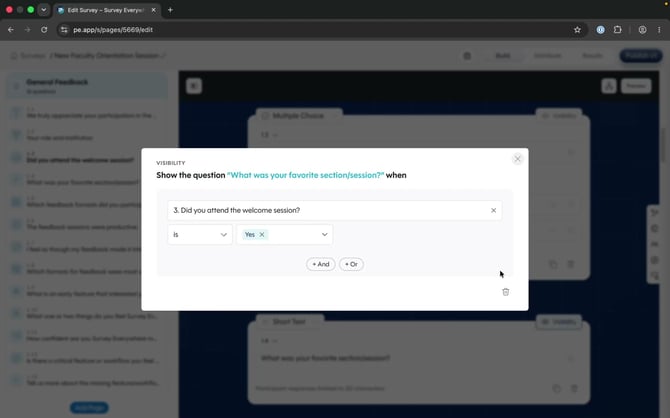 This question appears only when the participant answers Yes to the earlier attendance question.
Step 3.Confirm the Visibility control changes color. The highlighted control indicates that visibility logic is applied to the question.
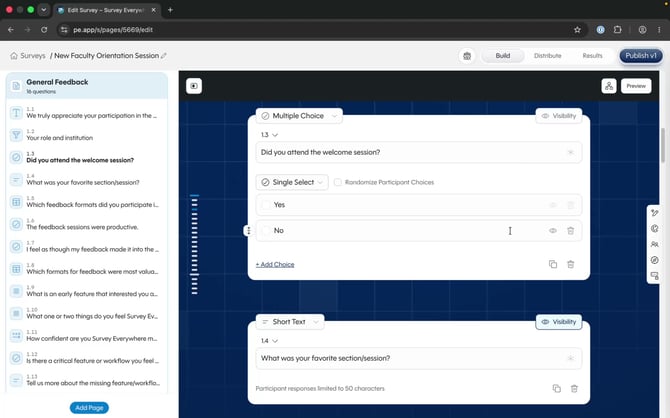 The highlighted Visibility control shows that the question has an active visibility rule.
Skip to another question on the same page
Step 1.In the position where the rule should run, select Add Content. Under Logic, select Skip.
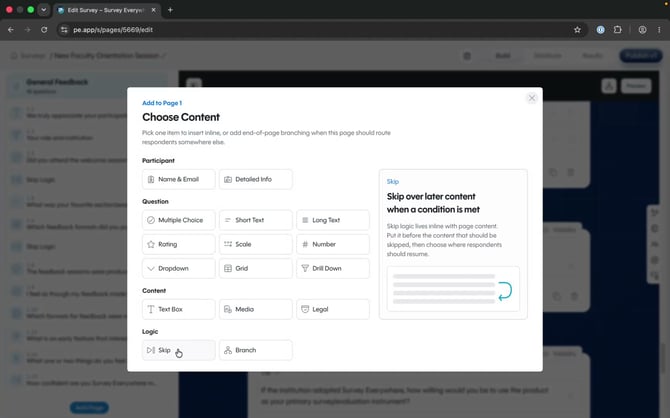 Add Skip as a content item at the point where Survey Everywhere should evaluate the rule.
Step 2.Under When, choose the question, comparison operator, and response that should trigger the skip.
Step 3.Under Then Go To, choose a later question on the current page or the end of the page.
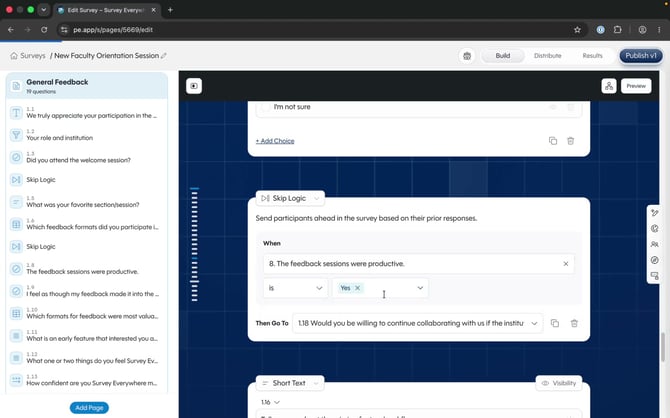 This rule sends participants forward within the current page when its condition is met.
Branch to another page
Step 1.At the point where participants should be redirected, select Add Content. Under Logic, select Branch.
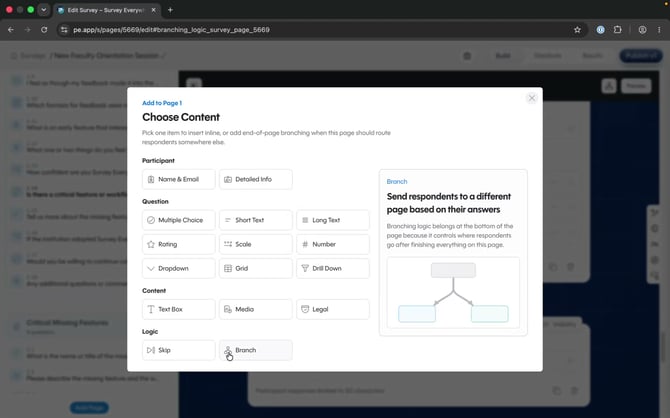
Add Branch when a response should send participants to another survey page.
Step 2.Under Go To, choose the destination page. Under When, choose the question, operator, and response that should trigger the branch.
Step 3.If needed, select Add Destination to create another route. Set the otherwise destination for participants who do not match a rule, then select Save.
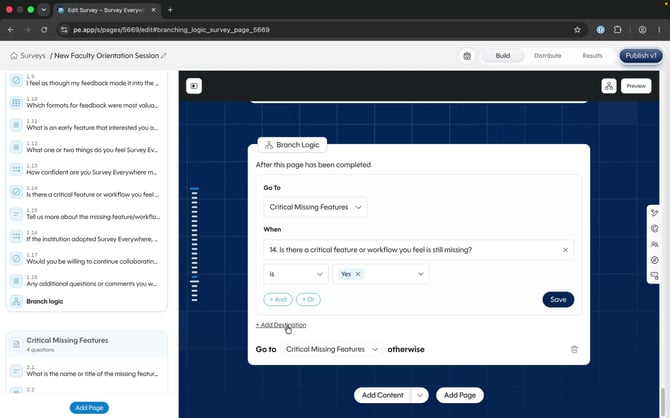
The branch sends matching participants to the Critical Missing Features page.
Note: Check the otherwise destination before saving. It determines where every participant who does not match a branch condition will go.
Review logic in Visualize
Open Visualize in the survey builder to see pages, conditions, branch nodes, and destinations as a flowchart. Use the zoom controls or Fit to Screen when the survey becomes too large to review at once.
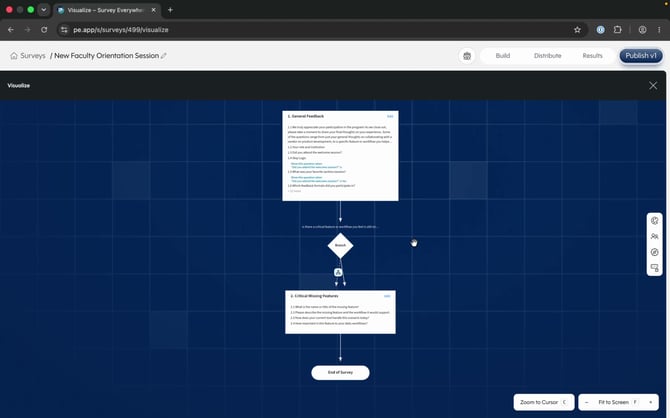 Visualize provides an overview of the paths participants can take through the survey.
Select a branch control to inspect its condition and destinations. Select Edit to update the rule without leaving the Visualize workflow.
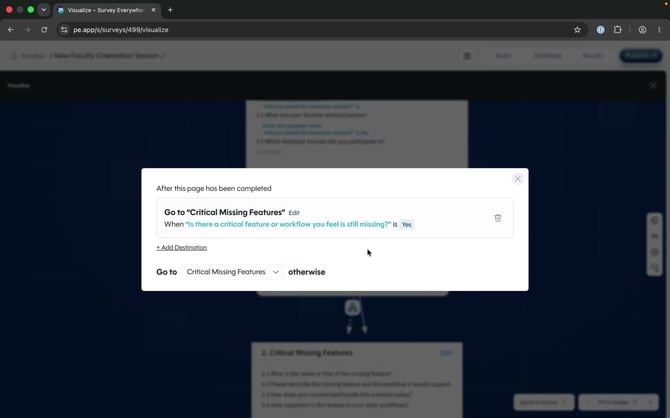 Inspect or edit a branch directly from the Visualize flowchart.
Tip: Preview and test every response path before publishing, including the otherwise route and responses that should not trigger any logic.